
Like most technology, the EXO-GROW L.E.D. & LASER CAP operates using software. The software version installed on the device is commonly referred to as the firmware. From time to time, firmware updates may become available to improve functionality, performance, or app compatibility.
How to Check for Firmware Updates
- Open the EXO-GROW app and sign in to your account.
- Navigate to the My Caps page.
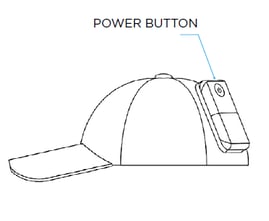
- Power on your EXO-GROW L.E.D. & LASER CAP by pressing the power button. The CAP will vibrate to indicate that it has powered on.
- Once the app detects that your CAP is powered on, it will display the CAP name, firmware version, and battery status.
- Next to the battery status, tap the three dots to open the hidden menu.
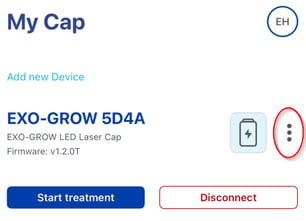
- Select OTA (Over-the-Air Update).
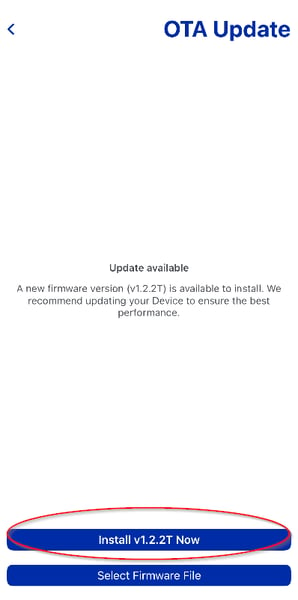
- The app will automatically check whether a firmware update is available. If an update is available, a message will appear advising that a new version is ready to install.
- Tap Install [Version Number] Now to begin the update.
- The firmware will automatically download and install via Bluetooth, provided that the CAP remains powered on throughout the process. The update progress will be displayed as a percentage within the app.
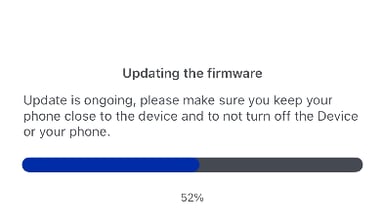
- Once the update reaches 100%, a confirmation message will appear advising that the update has been completed successfully.
- Tap Done to return to the My Caps page.
Your EXO-GROW L.E.D. & LASER CAP is now running the latest available firmware version.